






Best CRM and ERP Integration Tools in 2026: ETL vs iPaaS vs Real-Time Sync Compared
The tools that actually keep CRM and ERP records in agreement, compared on two-way sync, field mapping, and error handling, not just connector counts.
- Author
- Ruben Burdin · Founder & CEO
- Published
- Updated
- Read time
- 8 min read

Maintaining data consistency between Customer Relationship Management (CRM) and Enterprise Resource Planning (ERP) systems is a critical operational challenge. When sales data in Salesforce or HubSpot is out of sync with financial and inventory data in NetSuite or SAP, the consequences are immediate: inaccurate revenue forecasting, delayed order fulfillment, compromised financial reporting, and a fragmented customer view. This data divergence creates operational friction, forces manual reconciliation, and undermines data integrity across the organization.
The core of the problem lies in the inherent complexity of synchronizing two distinct, yet interdependent, systems of record. Traditional data integration methods often fail to meet the demands of this task. Custom-coded solutions are brittle and resource-intensive, while generic Integration Platform as a Service (iPaaS) offerings and one-way ETL/ELT tools are not engineered for the low-latency, bi-directional data flow required for operational alignment.
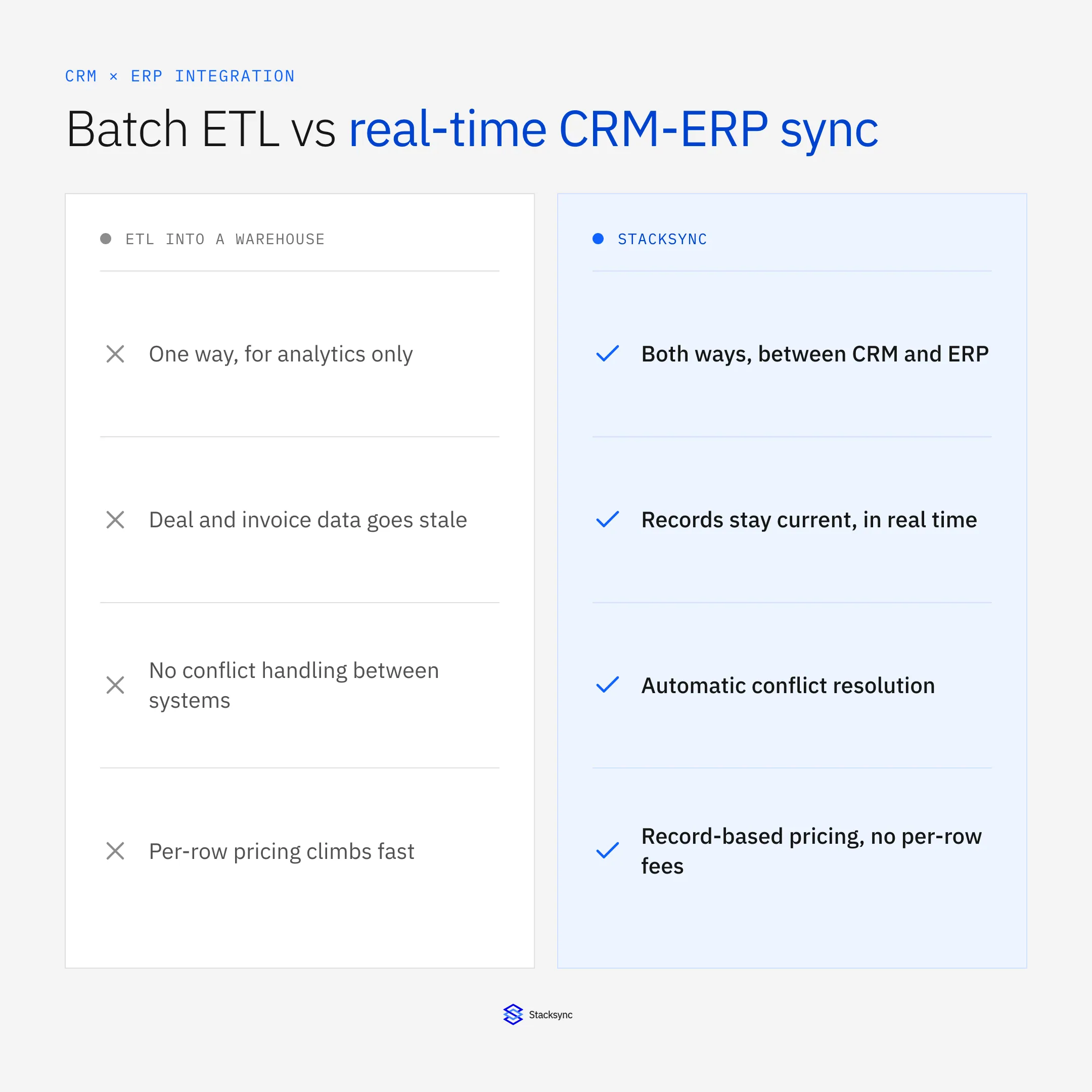
This article evaluates the landscape of customer data integration tools, from ETL pipelines to real-time sync platforms, focusing on the essential criteria for achieving a true, real-time, and reliable bi-directional sync between your CRM and ERP.
The Technical Challenge of CRM and ERP Synchronization
Integrating a CRM with an ERP is not a simple data-moving task. It is a complex process that requires a platform capable of handling disparate data models, high transaction volumes, and the need for immediate consistency.
- Disparate Data Models: CRMs are built around customers, leads, and opportunities. ERPs are structured around financial transactions, inventory, and supply chain logistics. A successful integration must intelligently map and transform these different objects, such as linking a "Closed-Won" opportunity in a CRM to a "Sales Order" in an ERP.
- Low-Latency Requirement: Operational workflows cannot tolerate delays. When a sales order is created, inventory levels must be updated in the ERP in near real-time to prevent stockouts. Similarly, customer payment status from the ERP must be immediately visible to the sales team in the CRM.
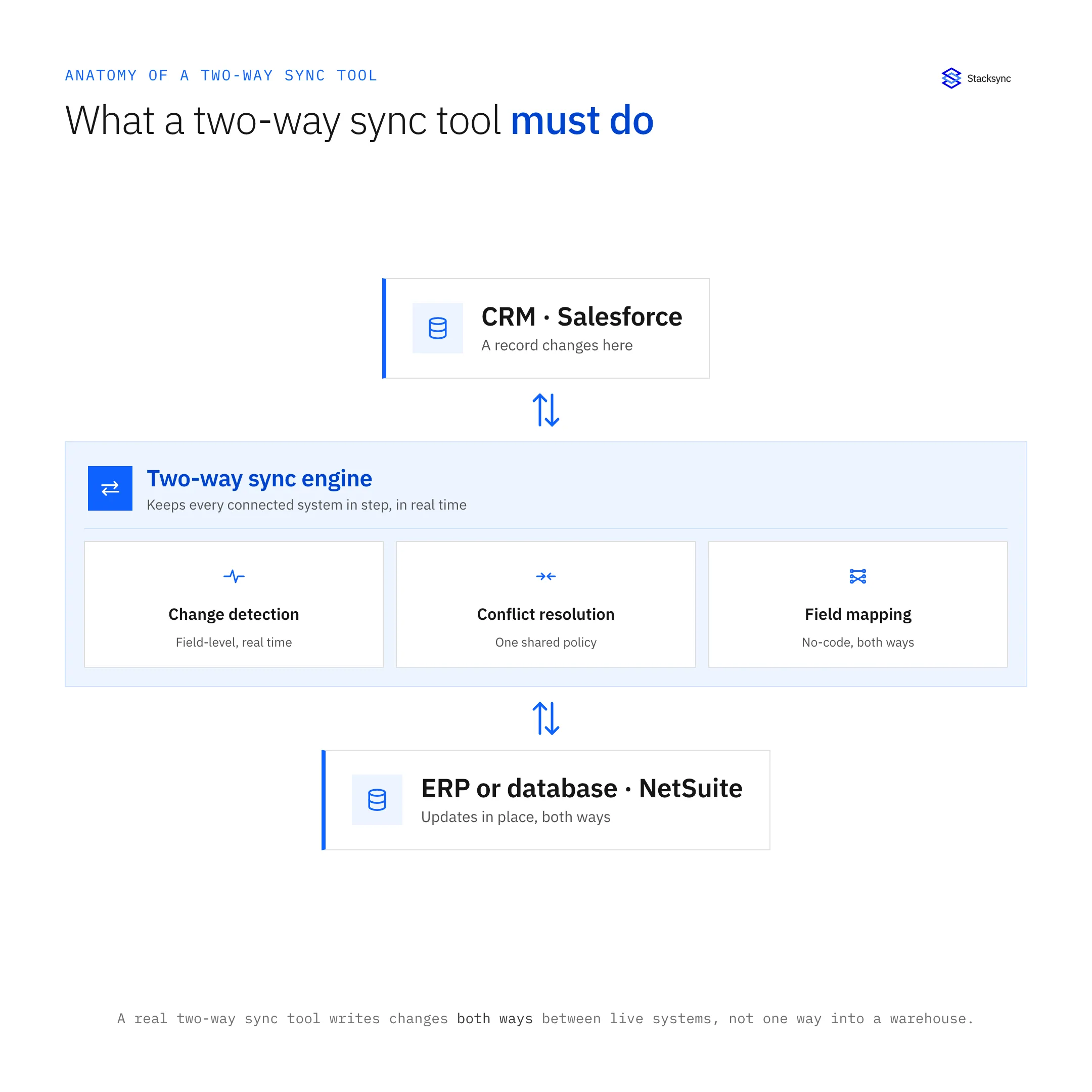
- Conflict Resolution: In a bi-directional sync, changes can occur in both systems simultaneously. A reliable integration tool must have a sophisticated conflict resolution mechanism to prevent data corruption, deciding which source takes precedence or merging changes intelligently without manual intervention.
- Scalability and API Management: Both CRMs and ERPs have strict API rate limits. An effective integration platform must manage API calls efficiently, handle bulk data loads, and scale to process millions of records without performance degradation or hitting API quotas.
Evaluating Data Integration Approaches
Not all data integration tools are created equal, especially for the demanding use case of CRM-ERP sync. When evaluating the best ETL tools for integrating ERP and CRM systems, solutions generally fall into three categories, each with distinct technical limitations.
- 01Generic iPaaS Platforms: These platforms offer a wide array of connectors and visual workflow builders. Tools like APPSeCONNECT provide drag-and-drop designers and pre-built templates to connect various applications. However, they often simulate bi-directional sync by running two separate one-way syncs. This approach introduces significant latency and lacks a unified mechanism for conflict resolution, increasing the risk of data inconsistency.
- 02ETL/ELT and Data Pipeline Tools: Solutions like Microsoft Azure Data Factory and Coupler.io are powerful for moving data from source systems into data warehouses for analytics,. Their architecture is fundamentally one-way and batch-oriented. They are designed for analytical workloads, not for powering real-time operational processes that require data to flow back and forth between systems like a CRM and ERP.
- 03Custom Code and Point Solutions: Building a custom integration offers flexibility but creates a significant maintenance burden. These solutions are often brittle, lack proper error handling and monitoring, and consume valuable engineering resources that could be focused on core product development.
For a task as critical as CRM-ERP synchronization, a dedicated solution is required, one that is architected from the ground up for real-time, bi-directional data flow.
A Review of Data Integration Tools for CRM-ERP Sync in 2026
Choosing the right tool depends on a clear understanding of its underlying architecture and intended use case, whether you need to consolidate data from multiple CRMs, sync a single CRM with an ERP in real time, or both.
Generalist Platforms: Broad but Not Deep
These platforms serve a wide range of integration needs but may lack the specialized features for high-stakes operational sync.
- APPSeCONNECT: An iPaaS solution that enables integration between systems like Microsoft Dynamics 365 CRM and various ERPs using a visual designer. It offers features like real-time tracking and enhanced error handling, making it a viable option for automating business processes. However, its primary focus is on broad application connectivity rather than specialized, high-performance bi-directional synchronization.
- SnapLogic: A low-code/no-code platform that uses pre-built connectors called "Snaps" to integrate systems like SAP, Oracle, and HubSpot. It excels at business process automation and data transformation but, like other generic iPaaS solutions, may not provide the true real-time, bi-directional performance needed for critical operational sync.
dedicated Platforms: Specialized and Performant
These platforms are engineered to solve the specific problem of keeping operational systems perfectly in sync.
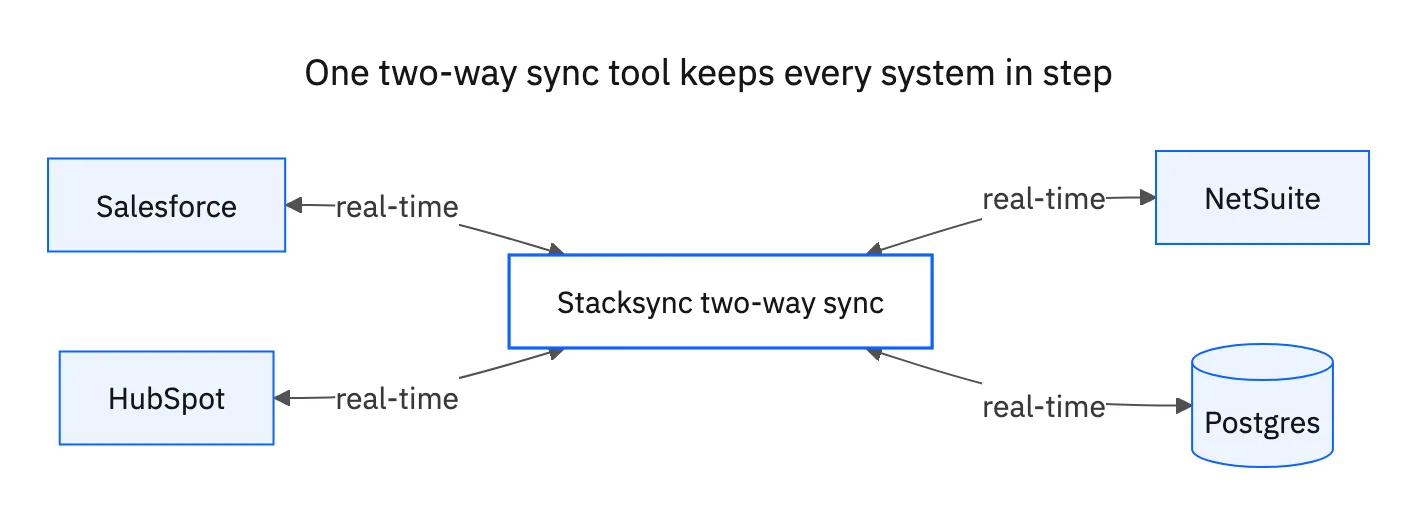
- Stacksync: A data integration platform built for real-time, bi-directional synchronization between operational systems, including CRMs, ERPs, and databases. It is designed to eliminate the inefficiencies of generic tools and custom code by providing a reliable, scalable, and easy-to-manage solution.
Stacksync directly addresses the core challenges of CRM-ERP integration:
- True Bi-Directional Sync: It offers a native two-way sync engine with millisecond latency, ensuring that a change in one system is instantly and accurately reflected in the other. This is fundamental for use cases like
netsuite salesforce data syncorsync zoho to hubspot. - No-Code Setup, Pro-Code Flexibility: Teams can configure complex syncs in minutes without writing code. For advanced customization, the platform allows a switch to pro-code, offering configuration-as-code for governance and version control.
- Automated Reliability: The platform features advanced log exploration, automated error handling, and intelligent conflict resolution, guaranteeing data consistency without manual oversight.
- Scalability: Stacksync is engineered to handle millions of records and executions, automatically managing API rate limits and ensuring performance does not degrade as data volume grows.
Comparison of Integration Approaches
| Feature | Generic iPaaS (e.g., APPSeCONNECT) | ETL/ELT Tools (e.g., Azure Data Factory) | Stacksync (dedicated Sync) |
|---|---|---|---|
| Primary Use Case | Broad application and workflow automation | One-way data pipelines for analytics | Real-time, operational data synchronization |
| Sync Model | Simulated two-way (two one-way flows) | One-way (Extract, Load, Transform) | True, native bi-directional |
| Latency | Minutes to hours | Hours (batch-oriented) | Milliseconds to seconds (real-time) |
| Conflict Resolution | Limited or requires complex custom logic | Not applicable | Built-in, automated |
| Setup Complexity | Moderate (visual but complex workflows) | High (requires data engineering expertise) | Low (no-code setup in minutes) |
| API Rate Limit Handling | Manual configuration required | Limited, designed for bulk batch loads | Automatic, built-in rate limit management |
| Maintenance Burden | Medium, requires ongoing workflow updates | High, needs dedicated data engineering team | Low, managed platform with auto-error handling |
Key Takeaways
ETL/ELT tools are built for one-way analytics pipelines, not operational CRM-ERP sync.
Generic iPaaS platforms simulate bi-directional sync by running two one-way flows, introducing latency and conflict risks.
dedicated platforms deliver native bi-directional sync with automatic conflict resolution and API rate limit management.

Making the Right Choice for Your Business
The optimal data integration tool depends entirely on your technical requirements and business objectives.
- For one-way data warehousing and analytics, or when you need the best ETL tools for integrating ERP data into a warehouse, Azure Data Factory is the correct choice.
- For general-purpose workflow automation across many non-critical apps, a generic iPaaS platform can provide value.
- For ensuring guaranteed, real-time data consistency between your CRM and ERP, where operational integrity is paramount, a dedicated platform is the only reliable solution.
If you are embedding CRM and ERP connectors in your own product rather than connecting internal systems, the embedded two-way sync page compares building in-house, unified APIs, embedded iPaaS and per-customer sync.
Key Evaluation Criteria
Before committing to any platform, evaluate three dimensions: sync model (true bi-directional vs. simulated), latency tolerance (real-time operational vs. nightly batch), and total cost of ownership including setup, maintenance, and ongoing engineering time.
For teams needing to consolidate data from multiple CRMs or connect several ERPs to a single data warehouse, scalability and schema flexibility become critical. The platform must handle evolving data models without manual intervention each time a field changes upstream.
Security and compliance capabilities are also essential: SOC 2 Type II certification, field-level encryption, and full audit logging are baseline requirements for any integration handling customer or financial data as volumes grow.
Platforms like Stacksync are engineered to address this specific, high-stakes challenge. By providing a solution that is fast, reliable, and scalable, Stacksync lets organizations to transform their siloed data into a unified, consistent, and actionable asset. This eliminates the need for brittle, custom-coded "dirty API plumbing" and allows engineering teams to focus on innovation, confident that their core operational data is always in sync.
Citations
- https://www.stacksync.com/blog/powerful-data-integration-platforms-for-enterprise-success
- https://www.appseconnect.com/top-7-application-integration-tools-to-watch-out-for-in-2025/
- https://blog.devart.com/best-data-integration-tools.html
- https://blog.coupler.io/top-data-integration-tools/
- https://www.cleo.com/blog/top-erp-integration-tools
- https://www.stacksync.com/blog/data-integration-platform-comparison-chart-for-real-time-sync
- https://www.stacksync.com/blog/top-data-integration-tools-for-small-business-with-real-time-sync
- https://www.stacksync.com

FAQ
Frequently asked questions




Related articles


